All the mainstream desktop browsers can send their traffic through a proxy server, but they do not all keep their own settings. Chrome, Edge, Internet Explorer, Opera and Safari follow the proxy settings of Windows or macOS. Firefox follows them by default too, and can also use a separate proxy of its own.
You only need two things from the proxy provider: the IP address and the port. This guide uses 1.2.3.4:2000 in the screenshots. Replace it with the IP and port you were given.
1. Chrome, Edge, IE, and Opera Use the System Proxy
Chrome, Microsoft Edge, Internet Explorer and Opera read the system proxy settings of Windows or macOS. None of them has a proxy field of its own, so you set the proxy once in the operating system and all of them use it.
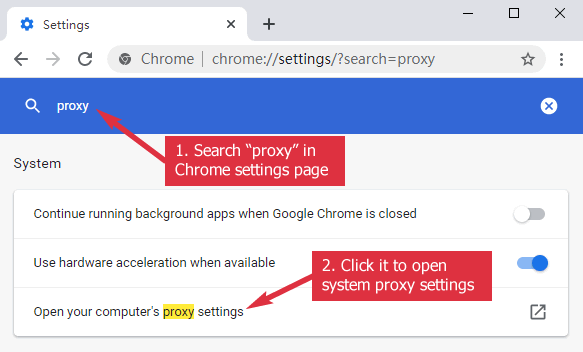
In Chrome, type “proxy” into the search box on the settings page. The result has a line called “Open your computer’s proxy settings”. Clicking it opens the same dialog you would reach from the Windows or macOS network settings.
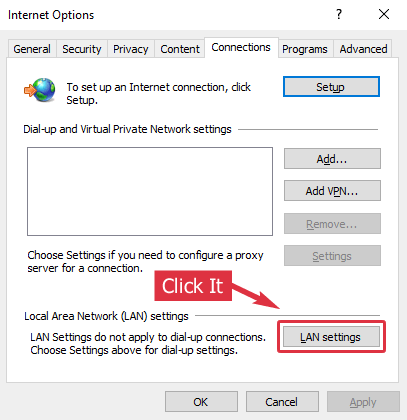
In Edge, the same link is under Settings and more > Settings > System and performance. In Internet Explorer, the path is Tools > Internet Options > Connections > LAN settings.
2. Windows 10 and Windows 11
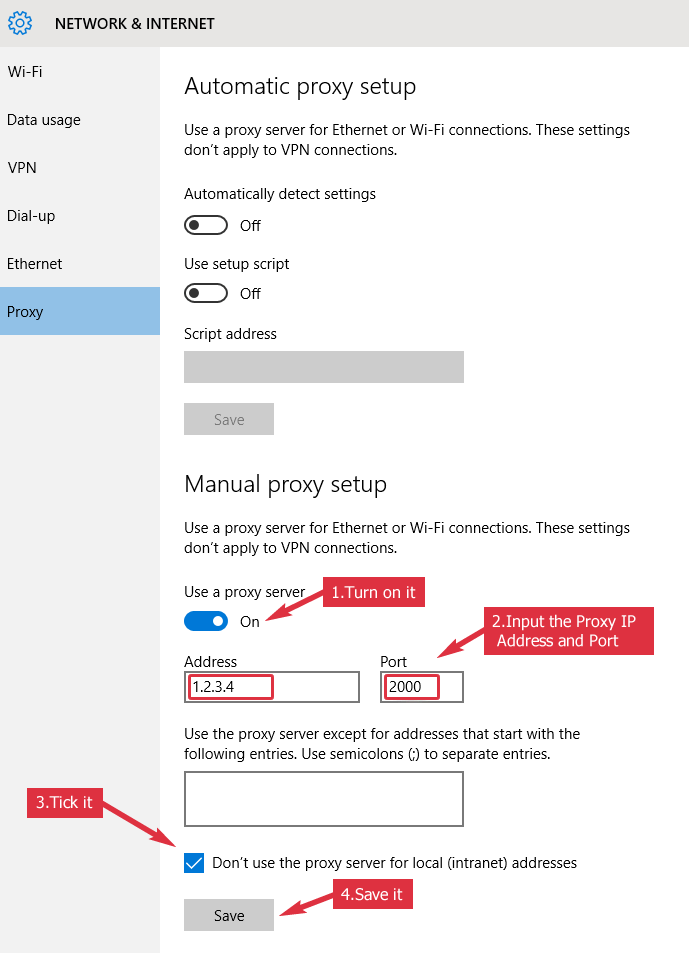
Open Settings > Network & Internet > Proxy. Under Manual proxy setup, turn on “Use a proxy server”, enter the address and the port, then click Save. Leave the bypass box empty unless some local or intranet addresses have to go direct.
Windows 11 uses the same screen with a “Set up” button that opens the same fields.
3. Windows 7 and Earlier
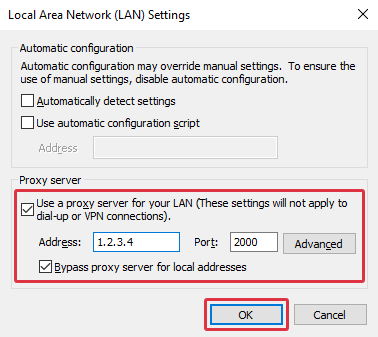
On Windows 7 and older versions, open Control Panel > Internet Options > Connections, then click LAN settings. Tick “Use a proxy server for your LAN”, enter the address and port, and click OK.
The LAN Settings dialog is where the address and port go. The “Bypass proxy server for local addresses” checkbox is optional.
4. macOS
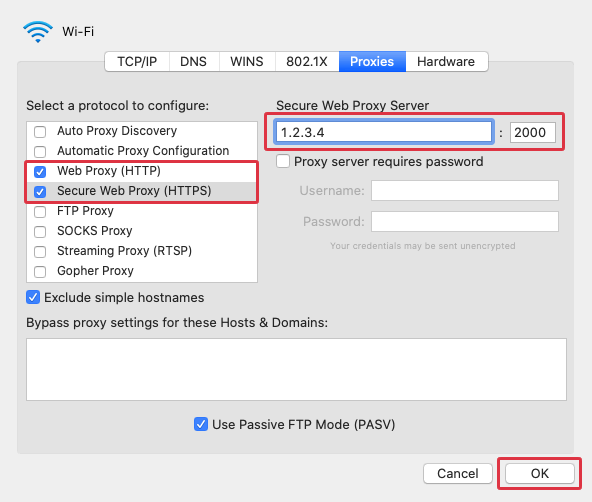
Open System Settings > Network, select Wi-Fi or Ethernet, then click Details and open the Proxies tab. Turn on Web Proxy (HTTP) and Secure Web Proxy (HTTPS), and fill in the server and port for each. Click OK to save.
On older macOS versions the same panel is in System Preferences > Network > Advanced > Proxies.
Safari has no proxy settings of its own, so it always uses this panel. Chrome and Edge on a Mac use it as well.
5. Check the New IP
Open https://www.find-ip.net in Chrome. If the page shows the IP of the proxy, the setting works. If it still shows your own IP, the proxy is offline, the port is wrong, or an exception rule is sending the site direct.
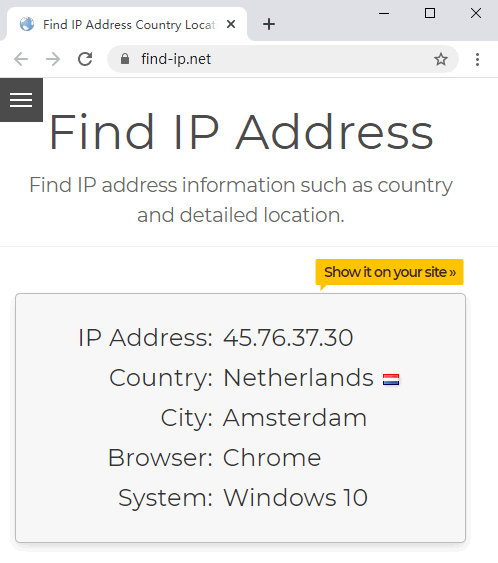
Since IE, Edge and Opera share the same system settings, they now use the same proxy as Chrome.
6. Firefox with the System Proxy
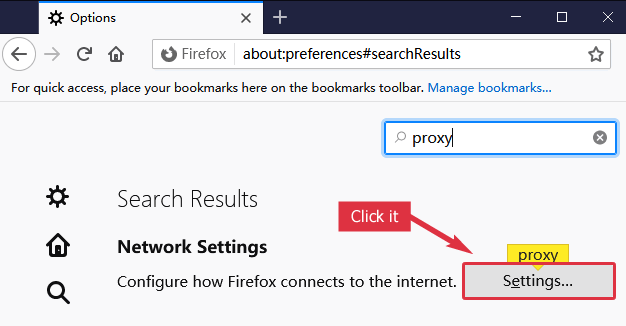
Firefox uses the system proxy by default. Type “proxy” into the search box on the Firefox settings page, then click the Settings button for Network Settings.
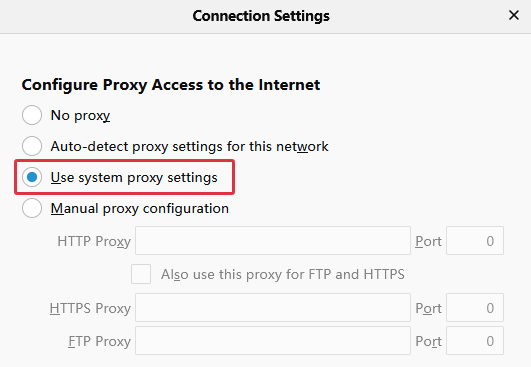
“Use system proxy settings” is the default option. With it selected, Firefox uses the same proxy as Chrome, Edge, IE and Opera, and any change you make in Windows or macOS applies to Firefox too.
7. Firefox with Its Own Proxy
Firefox can also keep a separate proxy. This is handy when you want Firefox to use a proxy while Chrome and the rest stay on a direct connection, or the other way around. Select “Manual proxy configuration” and fill in the HTTP Proxy and HTTPS Proxy fields, usually with the same server and port.
For a SOCKS5 proxy, put the address in the SOCKS Host field, choose SOCKS v5, and keep “Proxy DNS when using SOCKS v5” checked. That sends the DNS lookups through the proxy as well. The two guides on Firefox remote DNS and Chrome SOCKS proxy with remote DNS explain why it matters.
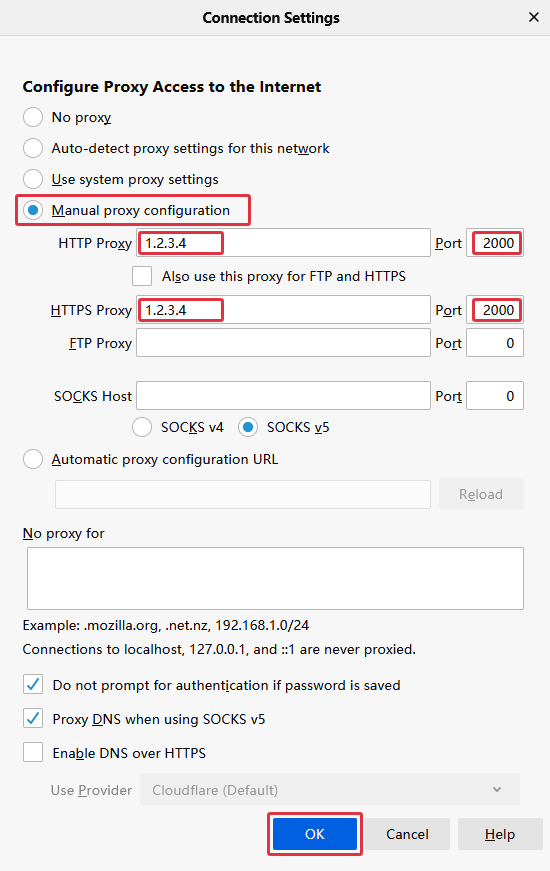
Click OK, and Firefox keeps this setting until you change it.
8. Check the IP in Firefox
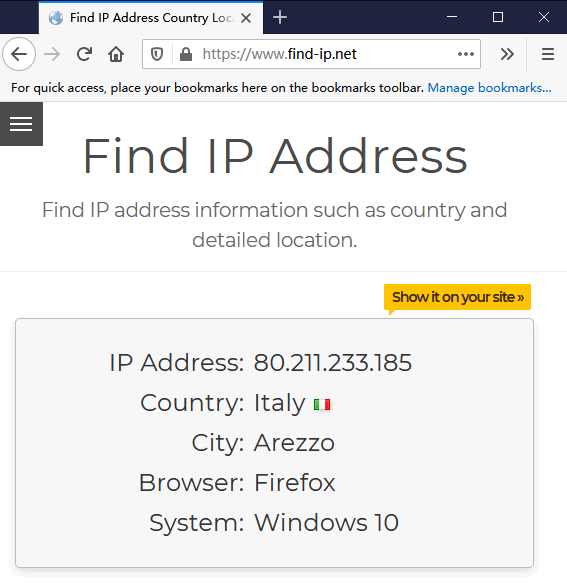
Open https://www.find-ip.net in Firefox and compare the IP with the one Chrome shows. If they differ, Firefox is using its own proxy and the other browsers are on the system setting.
9. When Free Proxies Are Not Enough
A free proxy is fine for checking a country or testing the settings above, but the addresses disappear often. For work that has to keep running, we sell private pools that never appear on free lists.
Rotating Proxy rotates the IP every second or every 30 minutes across 11,000+ addresses, over both HTTP and SOCKS5, with separate pools for single countries, regions and residential IPs.
Datacenter proxies are the fixed alternative: 100 premium HTTP and SOCKS5 proxies from 100 unique subnets, so a block on one range does not take out the rest.
10. Skip the Setup Entirely
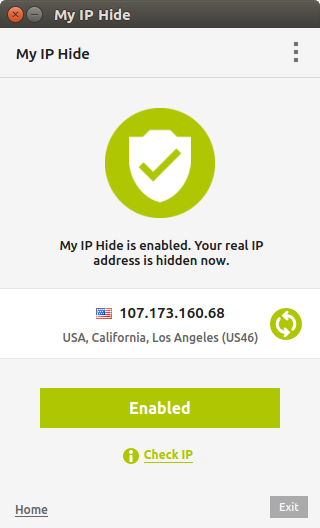
If you only need to hide your IP or open blocked sites in a browser, My IP Hide changes the proxy settings for you. It is a free VPN proxy advertised as 13x faster than a normal VPN, and runs on Windows, macOS, Linux, Android and iOS. Start it and the browser traffic goes through one of its servers; exit it and the browser is back on a direct connection.
11. Where to Get Free Proxies
Our free proxy list has HTTP and HTTPS proxies checked every hour, and the Socks proxy list covers SOCKS proxies.
Test an address on proxy-checker.org before you rely on it. Public proxies die quickly, so one that worked an hour ago may already be gone. The paid pools above are the fix when that happens.