When you download a torrent, every peer in the swarm can see your IP address. A proxy hides your real IP by routing your torrent traffic through a server, so other peers only see the proxy’s IP instead of yours.
This guide shows how to set up a SOCKS5 proxy in uTorrent or BitTorrent, and how to check that it actually works.
1. Get a SOCKS5 Proxy
For torrenting, a SOCKS5 proxy is the best choice. uTorrent and BitTorrent also accept HTTP and SOCKS4 proxies, and both can technically carry peer-to-peer connections. HTTP proxies are built for web pages. They are usually limited to ports 80 and 443 and rewrite your traffic, which makes them slower and easier to leak. SOCKS4 cannot send hostname lookups through the proxy and has no password authentication. SOCKS5 is the only type that can do both, so that is what the steps below use.
You can pick a free one from our free SOCKS proxy list for testing. Free proxies are public, often slow, and go offline frequently. A paid SOCKS5 proxy gives you a stable IP, much better speed, and username/password authentication.
Before you continue, write down the proxy’s IP address (or hostname) and port, plus a username and password if your proxy uses them.
2. Set Up the Proxy in uTorrent / BitTorrent
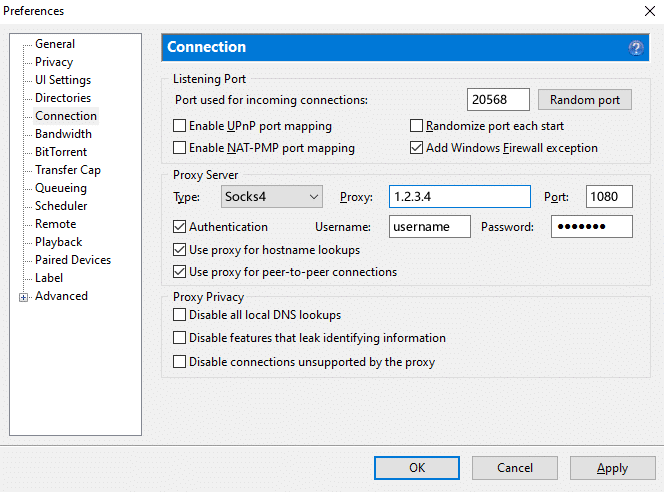
uTorrent and BitTorrent share the same settings. In uTorrent, go to Options > Settings > Connection (in BitTorrent: Settings > Connection):
- Set Type to SOCKS5.
- Enter the proxy IP address and port.
- If your proxy requires a login, tick Authentication and enter the username and password.
- Tick Use proxy server for peer-to-peer connections.
- Tick Use proxy server for hostname lookups if the option is available.
- Click Apply and restart the client.
3. Check That the Proxy Works
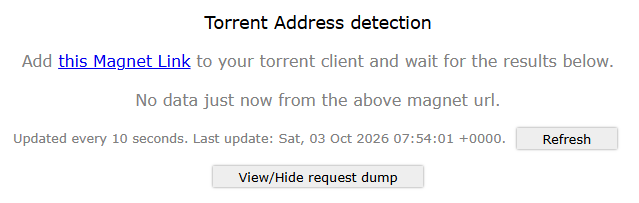
The easiest way is a torrent IP checker. Search for “check my torrent IP” or use a service like ipleak.net: add its magnet link to the client, wait a few seconds, and it shows the IP address that other peers see. If it reports the proxy’s IP, the setup works. If it shows your home IP, re-check the settings above.
Your web browser does not go through the torrent client’s proxy, though. If you also want your browser traffic to use the same SOCKS5 proxy, see our guides for Chrome and Firefox (both include how to send DNS lookups through the proxy).
4. Prevent Leaks
A proxy only covers the connections that the client makes through it. A few client features can still expose information, so it is safer to turn them off in the client’s settings:
- DHT and PEX: these find peers without trackers and may bypass the proxy.
- Local Peer Discovery: broadcasts your activity on the local network.
- UPnP / NAT port mapping: lets the client open ports on your router outside the proxy.
Also keep an eye on the status bar: if the proxy goes offline, the client may fall back to a direct connection.
A SOCKS5 proxy is the simplest way to hide your IP in the swarm. It does not encrypt your traffic. For that, you need a VPN. We compare the two options in Proxy vs. VPN for Torrenting.